> ## Documentation Index
> Fetch the complete documentation index at: https://bunnynet-cb9733c2-stream-portrait-video-nathan.mintlify.site/llms.txt
> Use this file to discover all available pages before exploring further.
# Embedding videos
> Bunny Stream is designed for developers and content creators to easily upload, process, and display videos within any application or website. Once your videos have been processed, you can embed them by using our lightweight embed player, enabling seamless playback across all devices and browsers.
Once a video has finished processing, you can embed it on any page using the Bunny Stream player. This page covers the iframe URL pattern, sizing tips, and code samples for common frameworks.
## How to embed a video?
Embedding a video involves placing an `
```
```javascript JavaScript theme={null}
```
The embed code for a particular video can be generated on the video details page in the dashboard.
## How to embed vertical portrait (9:16) mobile video
Portrait (9:16) video is common for mobile-first content, short-form clips, and social-style players. By default, the Stream embed renders in landscape (16:9). This guide shows you how to adjust it for vertical video.
#### Basic embed
The standard Stream embed code wraps the iframe in a div with `padding-top: 56.25%` to maintain a 16:9 ratio:
To embed portrait video, you have two options: the **wrapper approach** (broader compatibility) or the **direct approach** (simpler, modern browsers only).
#### Option 1: Direct aspect-ratio (recommended)
For modern browsers, you can apply `aspect-ratio` directly to the iframe and remove the wrapper div entirely.
```html theme={null}
Portrait Video
```
The key CSS properties are:
* `aspect-ratio: 9 / 16` - locks the iframe to portrait proportions
* `width: min(100vw, calc(100vh * 9 / 16))` - scales the player to fill the viewport without overflow on any screen size
* `display: block` - removes the default inline gap beneath the iframe
This approach requires a browser that supports the `aspect-ratio` CSS property (Chrome 88+, Firefox 89+, Safari 15+). For broader compatibility, use Option 2 below.
#### Option 2: Wrapper div
If you need to support older browsers or want more control (e.g. overlaying UI elements on top of the player), use a wrapper div instead.
```html theme={null}
Portrait Video
```
The wrapper approach works by:
1. Sizing the **wrapper div** to the correct portrait dimensions
2. Stretching the **iframe** to fill it absolutely with `position: absolute; width: 100%; height: 100%` Use this approach when you need to layer overlays, captions, or buttons on top of the player.
## Parameters
By default, many of the player’s controls and behaviors, such as captions, autoplay, and preload, can be configured on a global scale within the Player tab of your Bunny Stream library settings. Adjusting these default configurations ensures that any video embedded from that library inherits the same baseline behavior, providing a consistent user experience across all embedded instances.
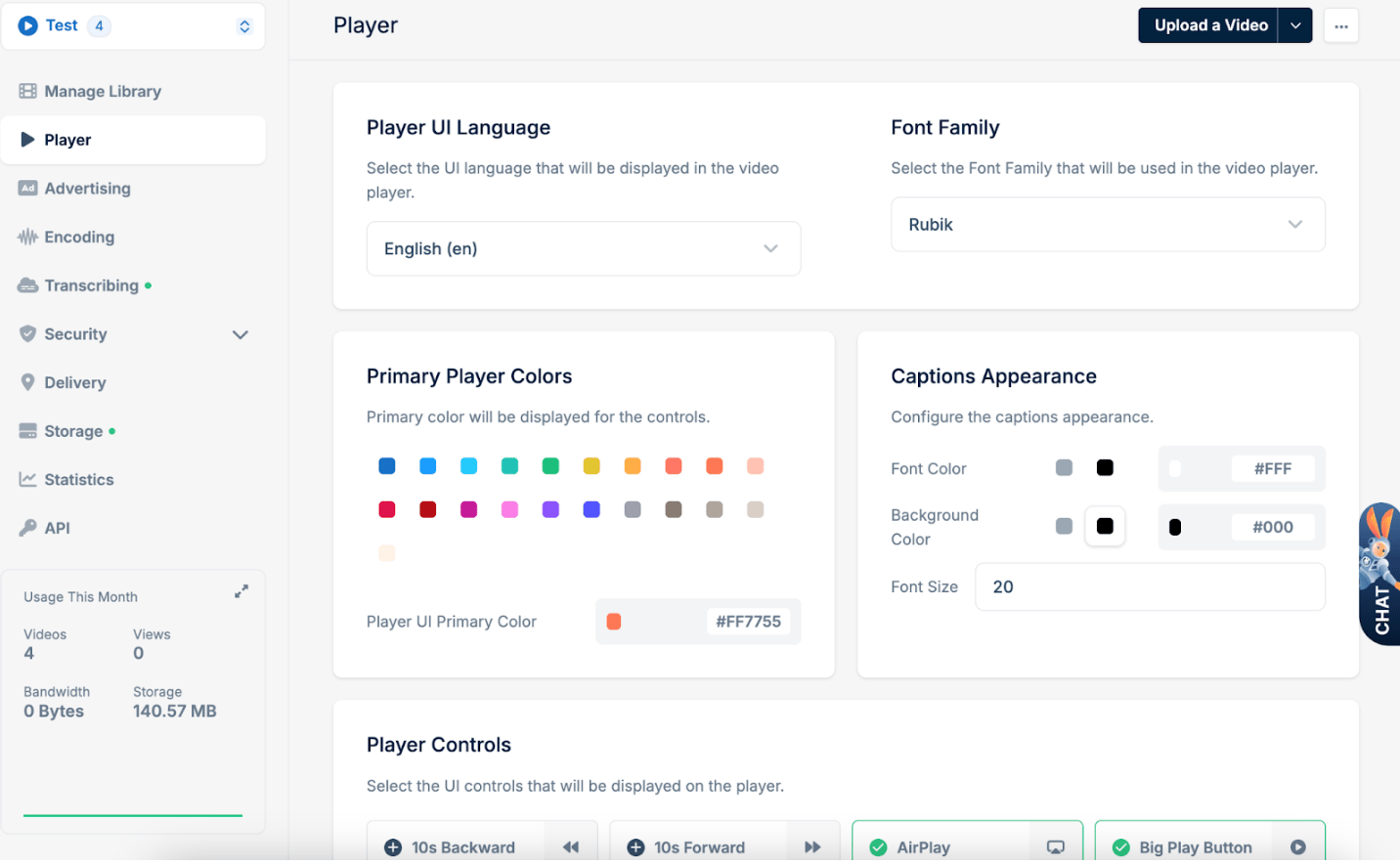 However, you can also fine-tune or override these defaults on a per-embed basis by adding query parameters directly to the embed or direct play URL. This flexibility allows you to tailor the playback experience for specific pages or use-cases without affecting the global settings of your library.
## Supported Parameters
Below is a concise table summarizing each parameter, its possible values, a brief description, and the default value.
| **Parameter** | **Values** | **Description** | **Default Value** |
| ---------------------- | ---------------------------------------------- | ----------------------------------------------------------------------------------------------------------------------------------------------------------------------------------------------------------------------------------------------------------------------------------------------------------------------------------------- | ----------------- |
| **`autoplay`** | `true`, `false` | Controls whether the video should start playing automatically. Due to browser restrictions on auto-play, this may not always work. | `true` |
| **`captions`** | `caption short-code string`
However, you can also fine-tune or override these defaults on a per-embed basis by adding query parameters directly to the embed or direct play URL. This flexibility allows you to tailor the playback experience for specific pages or use-cases without affecting the global settings of your library.
## Supported Parameters
Below is a concise table summarizing each parameter, its possible values, a brief description, and the default value.
| **Parameter** | **Values** | **Description** | **Default Value** |
| ---------------------- | ---------------------------------------------- | ----------------------------------------------------------------------------------------------------------------------------------------------------------------------------------------------------------------------------------------------------------------------------------------------------------------------------------------- | ----------------- |
| **`autoplay`** | `true`, `false` | Controls whether the video should start playing automatically. Due to browser restrictions on auto-play, this may not always work. | `true` |
| **`captions`** | `caption short-code string`
`-auto` | Controls the default captions file that will be shown. By passing the caption code, the player will automatically load these captions. By default, the player remembers the user's last selection or does not load captions. Use in combination with `-auto`after the country code for the captions to display automatically on playback. | *N/A* |
| **`preload`** | `true`, `false` | Controls whether the video files are preloaded. When set to `true`, the player immediately starts downloading the video so playback begins more quickly. | `true` |
| **`t`** | `Xs` ,`1h20m45s` , `hh:mm:ss`
, `numeric` | Sets the video start time. Supports multiple formats: hours/minutes/seconds notation, `hh:mm:ss` format, or a simple numeric value interpreted as seconds. | *N/A* |
| **`chromecast`** | `true`, `false` | Enables or disables Chromecast support within the player. | *N/A* |
| **`disableAirplay`** | `true`, `false` | Disables AirPlay support when set to `true`. | *N/A* |
| **`disableIosPlayer`** | `true`, `false` | Disables the native iOS player (used typically for fullscreen handling on iOS). | *N/A* |
| **`showHeatmap`** | `true`, `false` | Displays a heatmap on the progress bar when set to `true`, highlighting viewer engagement at different points in the video. | *N/A* |
| **`muted`** | `true`, `false` | If set to `true`, the player starts in mute mode (no sound). This is often used for autoplay scenarios. | *N/A* |
| **`loop`** | `true`, `false` | Replays the video automatically after it ends, creating a continuous loop. | *N/A* |
| **`playsinline`** | `true`, `false` | Allows the video to play inline on mobile devices rather than forcing fullscreen playback. | *N/A* |
| **`showSpeed`** | `true`, `false` | Shows a speed control within the player, allowing playback rate adjustments. | *N/A* |
| **`rememberPosition`** | `true`, `false` | Controls whether the player remembers the last playback position for the viewer within their browser. If set to `true`, the player stores the last position and attempts to resume from that point when the viewer returns. When `false`, the video always starts from the beginning. | `false` |
| `compactControls` | `true`, `false` | Enables compact UI view for the bunny player, allowing more space for video on desktop and mobile browsers. | `false` |
## Direct play URL query parameter example
```bash theme={null}
https://player.mediadelivery.net/play/{video_library_id}/{video_id}?t=30s
```
This example uses a query parameter which means the direct play URL will start video playback at 30 seconds.
## Player keyboard shortcuts
Bunny Stream player has support for the following keyboard shortcuts.
| Key | Action |
| ------ | ------------------------------------ |
| 0 to 9 | Seek from 0 to 90% respectively |
| space | Toggle playback |
| K | Toggle playback |
| ← | Seek backward by the seekTime option |
| → | Seek forward by the seekTime option |
| ↑ | Increase volume |
| ↓ | Decrease volume |
| M | Toggle mute |
| F | Toggle fullscreen |
| C | Toggle captions |
| L | Toggle loop |
## Custom integration
If you prefer to use your own player or a fully custom video integration, you can directly access the raw video files from Bunny Stream’s infrastructure. Please refer to our [Video Storage Structure](/docs/stream-video-storage-structure) documentation for details on how to retrieve and utilize video files directly.