

1
Open container settings
Go to Magic Containers and select the container you want to update. Click Container Settings, then click Edit.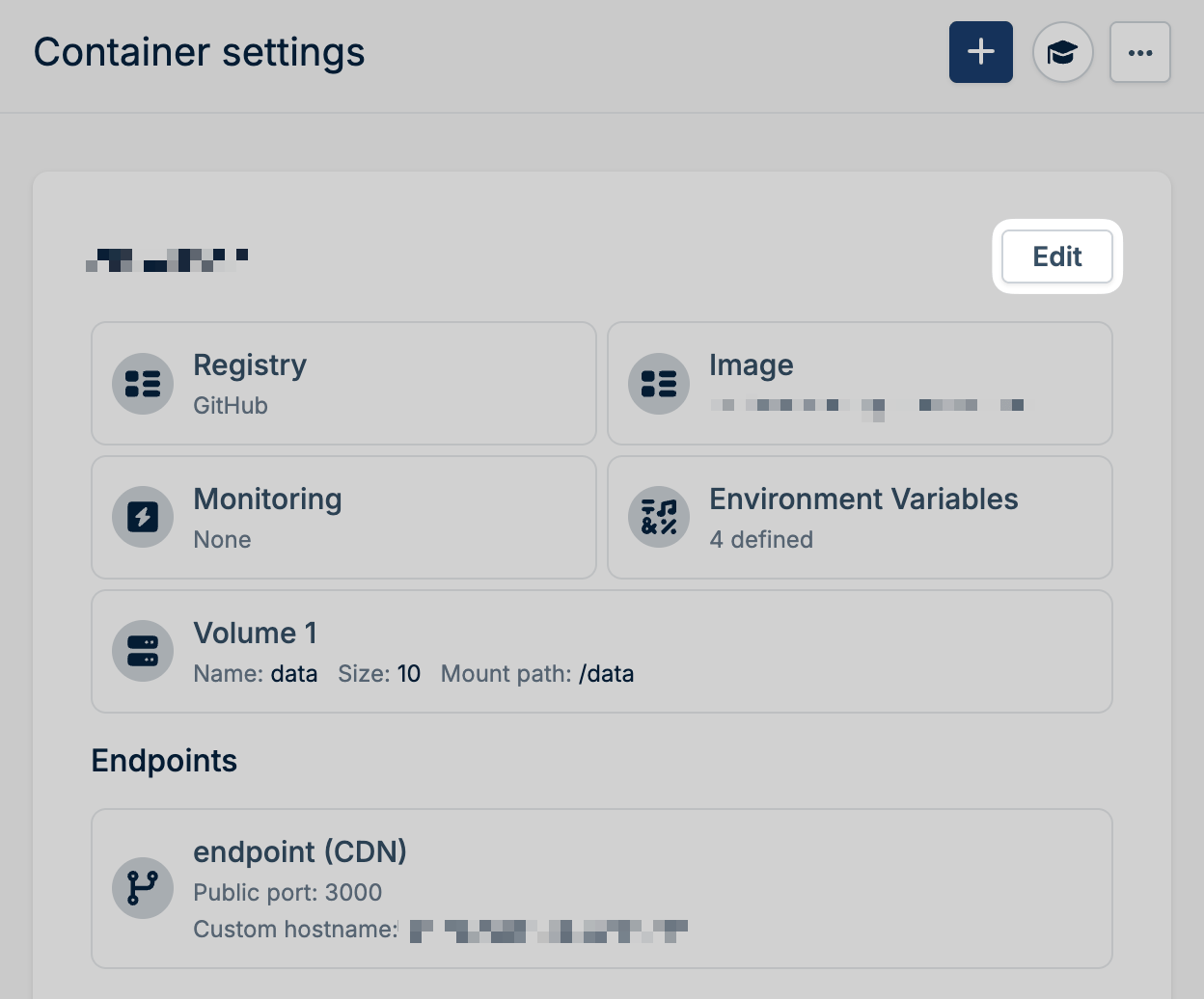
2
Select new image version
Select the new version from the image dropdown.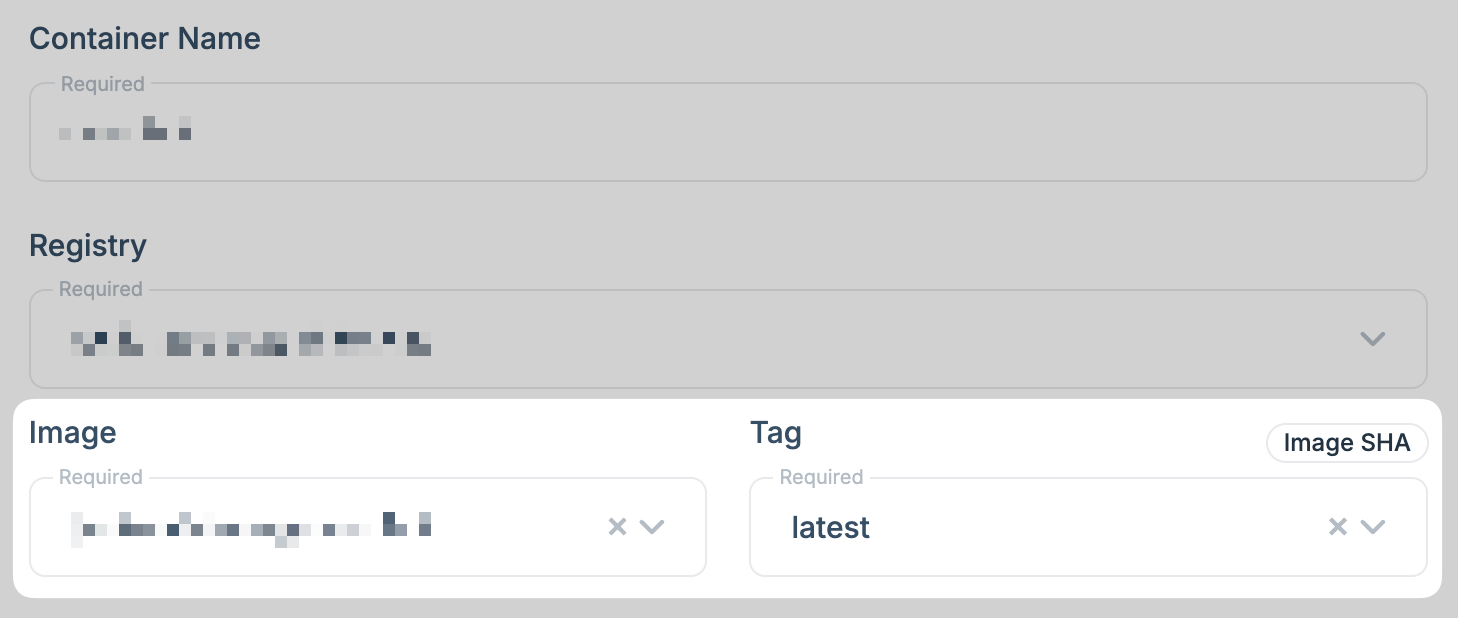
3
Update container
Click Update Container to deploy the new version.
4
Save changes
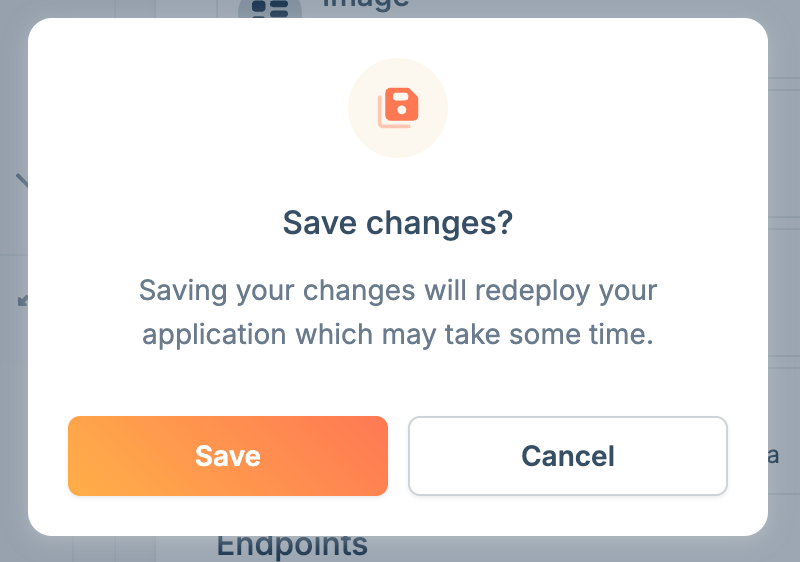
If there are no other changes to make to the app, click Save Changes to trigger a new deployment.
To automate deployments, you can use a GitHub
Action to update your container
whenever you push changes to your repository.